






how to use MEMO
Thanks for getting your MEMO Whiteboard Wallet! Short videos from our studio in Delft, the free scanner app and everything that is printed on the box, all on one page.
the basics
Three short videos: the pen, the whiteboard and moving your cards in.
the pen
- Unfold MEMO.
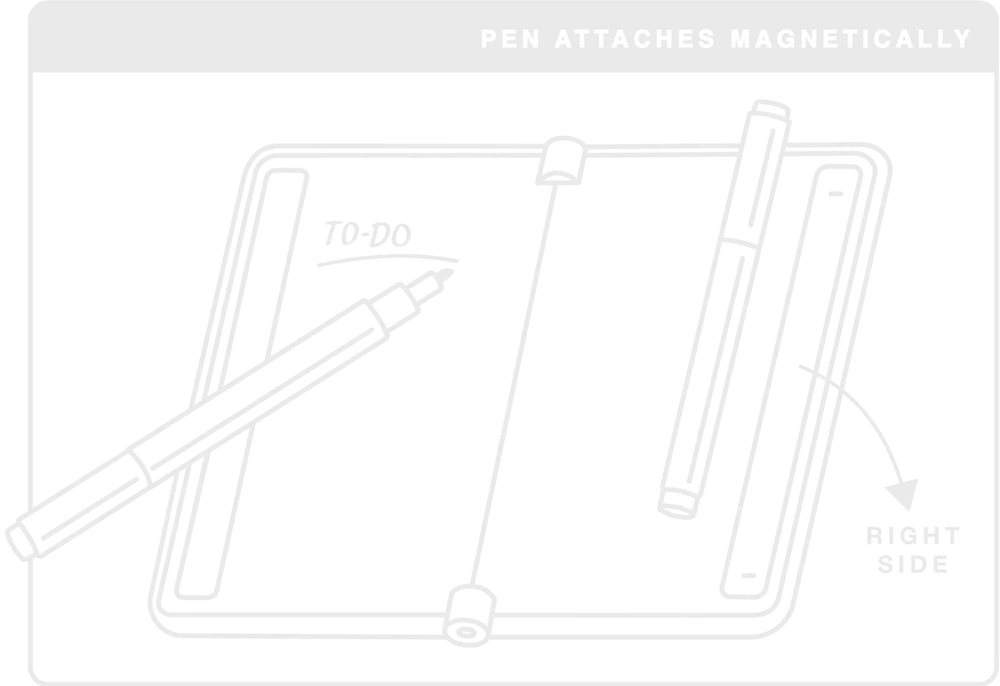
- Hold the pen along the right side. It attaches magnetically.
- Fold MEMO closed. The pen travels with it.
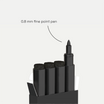
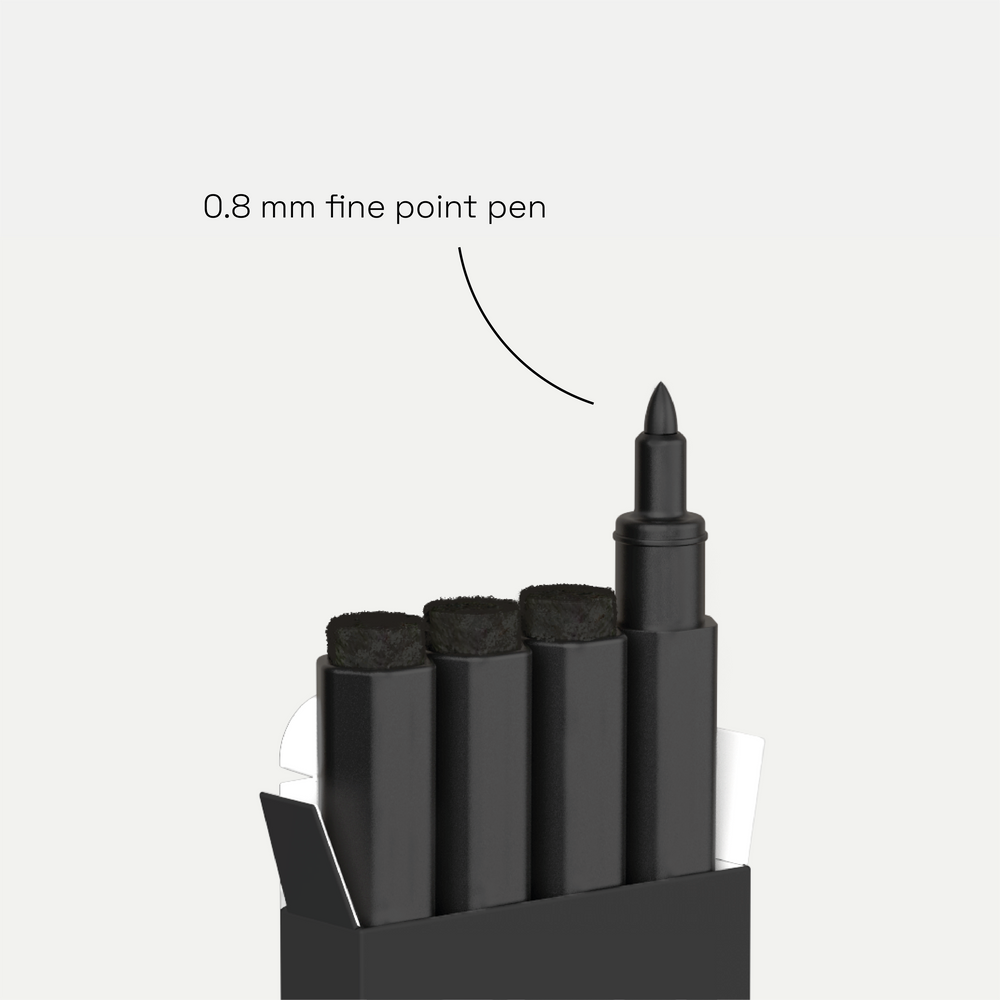
The pen has a 0.8 mm fine point.
the whiteboard
- Unfold MEMO.
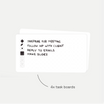
- Write your list, sketch or reminder.
- Scan it with the app if you want to keep it.
- Wipe it clean when you are done.
The whiteboard measures 15 cm diagonally.
moving in
- Take the cards you use most from your old wallet.
- Slide them into MEMO, up to 6 cards.
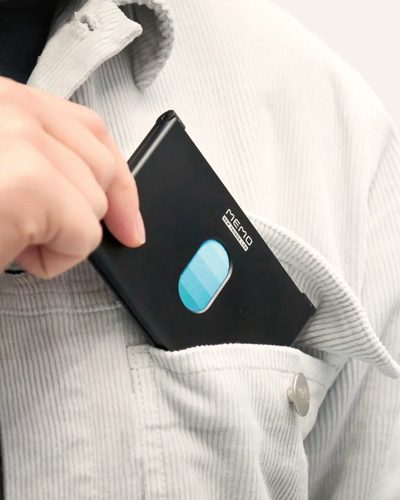
- To grab a card, push the stack up with your thumb.
RFID protection is built in.
tips and tricks
Three small habits that make MEMO even better.

clean erasing
Your eraser stays clean if you:
- place the eraser next to the writing
- move it over the writing
using the space
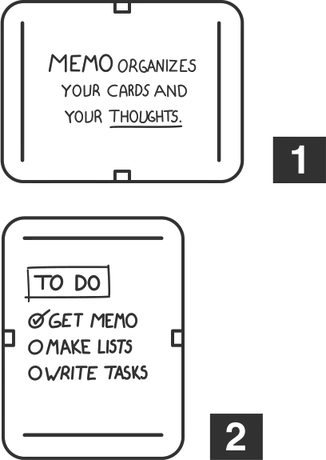
Depending on what you write, turn MEMO:
- horizontally for a classic feel
- vertically for longer lists
card sorting
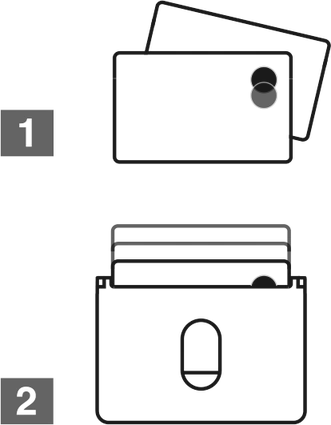
For the easiest access to your cards:
- pick your two most used cards
- place them in the front slots
MEMO Whiteboard Scanner
the app: write freely, wipe confidently
Your whiteboard is made to be wiped. The free MEMO Whiteboard Scanner app keeps a copy first, so a good idea never disappears with the eraser.
get started
- Download the free app for iPhone or Android.
- Open it and scan your whiteboard.
- Wipe MEMO clean. Your note stays in the app.
-
scan before you wipe
Scan your whiteboard with your phone before you wipe it. Each scan is saved as a digital copy.
-
tag and sort
Add tags and categories, so every note ends up in your own archive.
-
search your handwriting
Text recognition reads what you wrote by hand, so you can find a note later by searching for it.
-
share and back up
Export a note to share it or edit it further. Back up your notes and load them on another device.
get started
- Download the free app for iPhone or Android.
- Open it and scan your whiteboard.
- Wipe MEMO clean. Your note stays in the app.


On a computer? Scan with your phone to get the app.
The QR code inside your MEMO box opens the same app and extras page.
what is in your hand
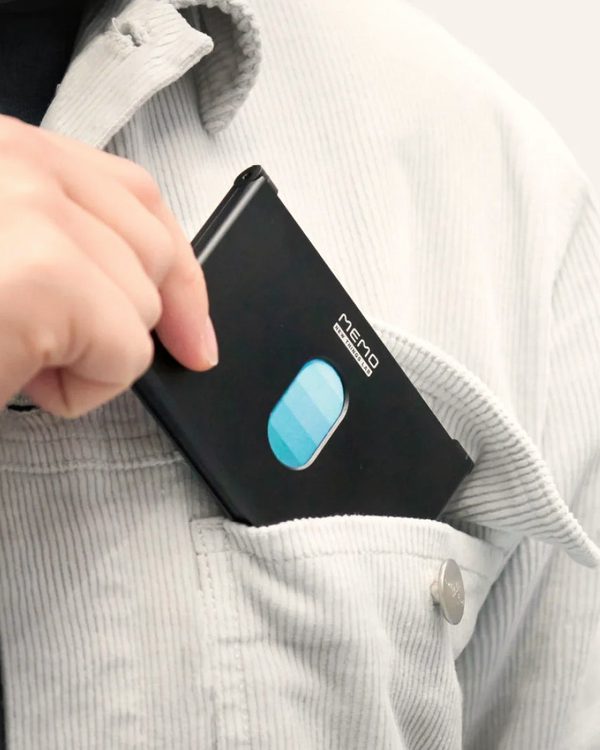
Small enough for your pocket. Big enough for your best ideas.



Patent-protected design. Designed in The Netherlands. MEMO uses magnets to hold the pen, so keep it away from a pacemaker.
care and safety
wiping and cleaning
Wipe your notes away with the eraser. Every once in a while, give the board a gentle clean with a microfiber cloth: that is the safest way to care for the surface. MEMO folds closed, so what you wrote does not smudge in your pocket. For the cleanest lines, use a fine point whiteboard pen like the Pen Pro.
magnetic field
MEMO uses magnets to hold the pen. The magnetic field may harm pacemaker wearers, so keep MEMO away from a pacemaker.
Running low on ink?
Pen Pro 4‑pack
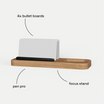
Four fine point whiteboard pens with a 0.8 mm tip, black ink and an eraser on the cap of each pen. Made for MEMO, and they work on the ZONE Bullet and Task Boards too.
FAQ
The questions we get most about MEMO.
Which pen do I use?
MEMO comes with a pen and eraser. Need more? Pen Pro refills come in a pack of 4 fine point whiteboard pens.
How many cards fit in MEMO?
Up to 6 cards.
Where does the pen go?
On the right side when MEMO is open. It attaches magnetically, so it stays put.
Where do I get the app?
MEMO Whiteboard Scanner is free on the App Store and Google Play. You can also scan the QR code inside your MEMO box, it takes you to our app and extras page.
Does MEMO have RFID protection?
Yes, RFID protection is built in.
Is MEMO safe with a pacemaker?
MEMO contains magnets. The magnetic field may harm pacemaker wearers, so keep MEMO away from a pacemaker.
Where can I find all the videos?
In our MEMO playlist on YouTube.